OTT 앱 인트로 따라하기
목차
- ScrollView에 모션 레이아웃 구현하기 1차
- AppbarLayout을 이용해 헤더 애니메이션 구현하기
- ScrollView에 모션 레이아웃 구현하기 2차
- ScrollView 내 부족한 내용 추가 및 다듬기
결과 화면
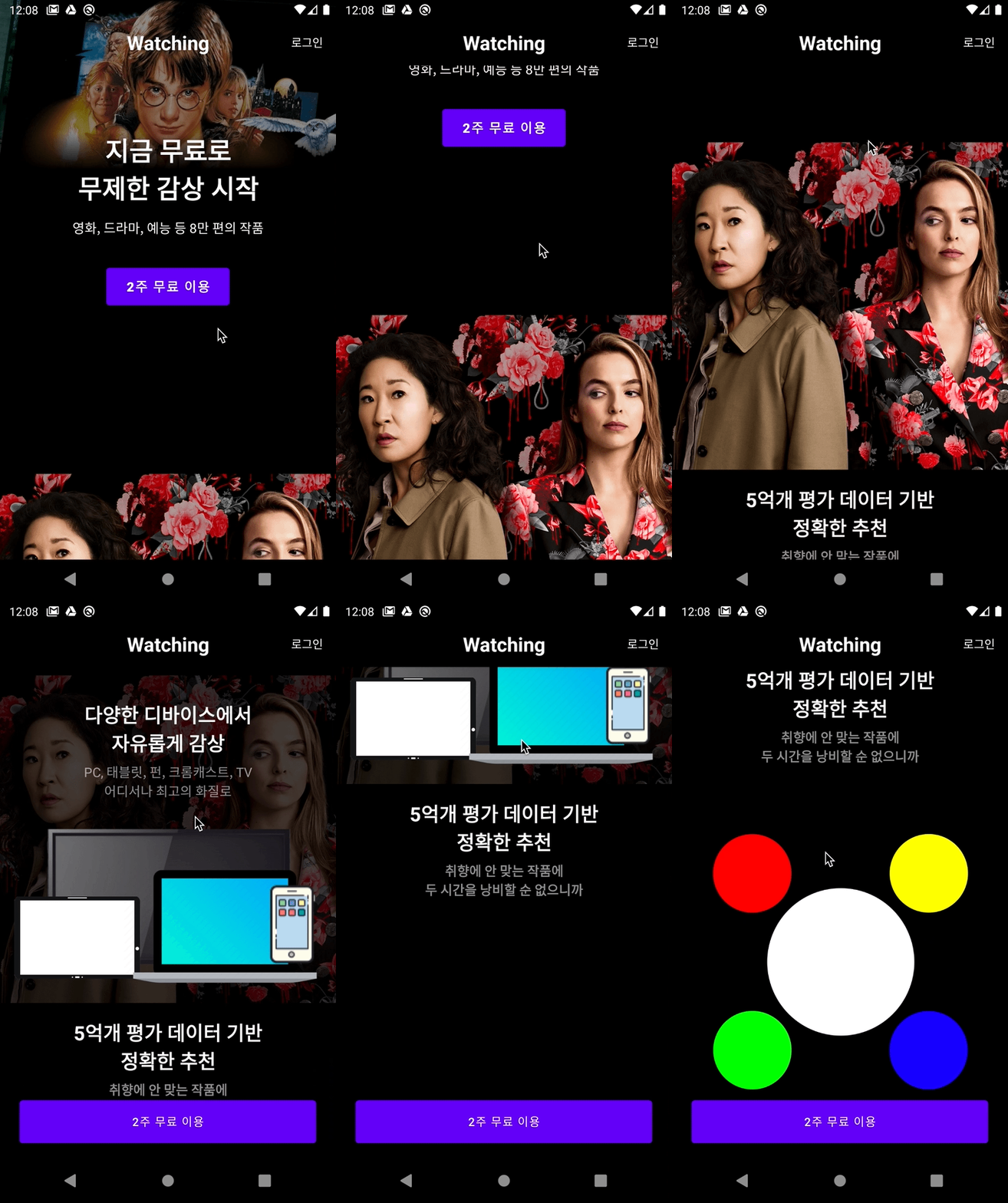
이번에 공부한 내용은 MotionLayout과 Cordinatorlayout이다
특정 모션을 주면 역동적인 앱을 만들 수 가 있는 점에서 매력적으로 배울 수 있는 부분이다.
먼저 MotionLayout과 Cordinatorlayout이 무엇인지 찾아보았다.
MotionLayout으로 모션 및 위젯 애니메이션 관리
MotionLayout은 앱에서 모션과 위젯 애니메이션을 관리하는 데 사용할 수 있는 레이아웃 유형입니다. MotionLayout은 ConstraintLayout의 서브클래스이며 ConstraintLayout의 다양한 레이아웃 기능을 기초로 합니다. ConstraintLayout 라이브러리의 일부인 MotionLayout은 지원 라이브러리로 사용 가능하며, API 레벨 14와 호환됩니다.
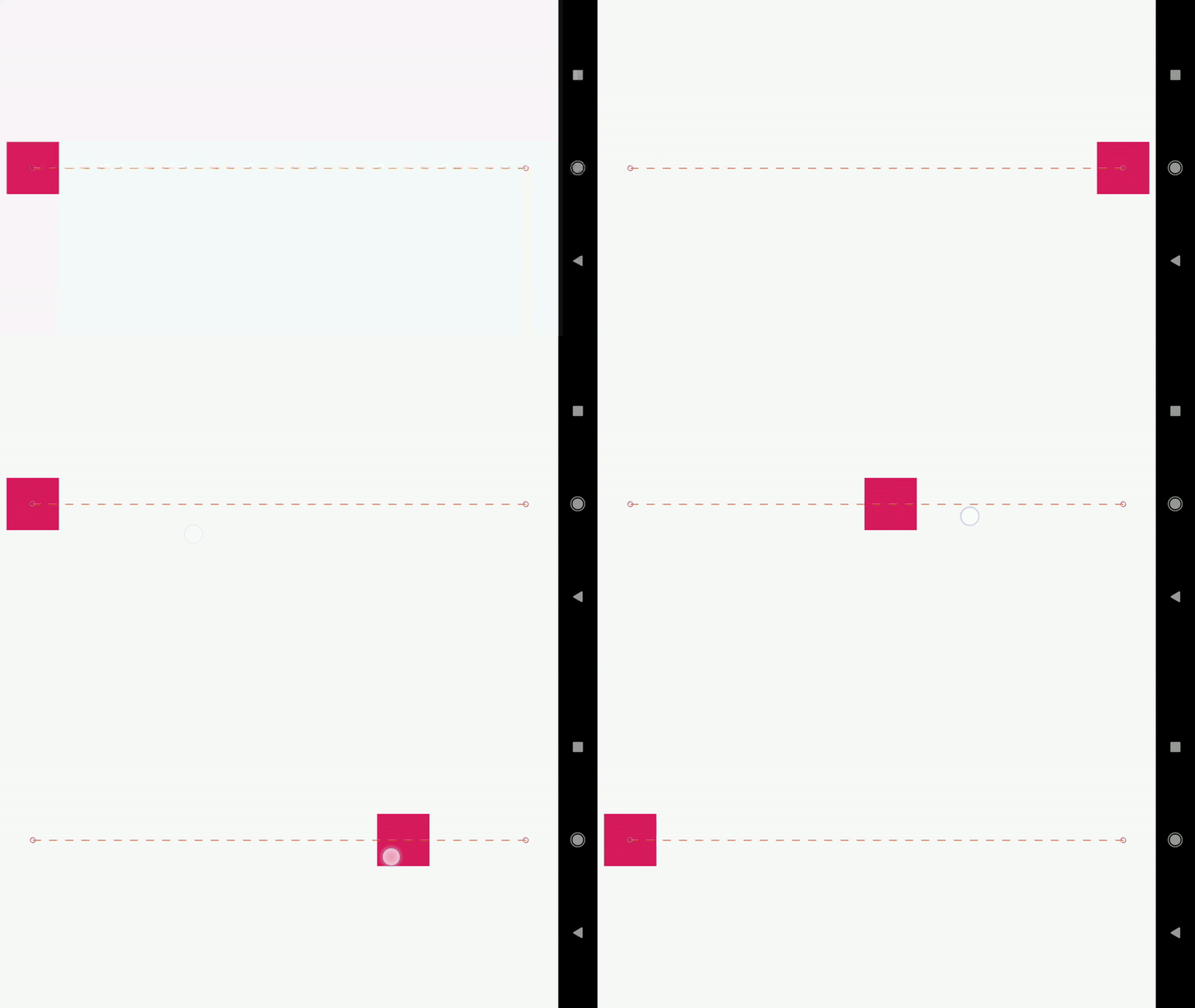
MotionLayout은 레이아웃 전환과 복잡한 모션 처리 사이를 연결하며 속성 애니메이션 프레임워크, TransitionManager 및 CoordinatorLayout 사이의 혼합된 기능을 제공합니다.
레이아웃 사이의 전환 외에도 MotionLayout을 사용하여 레이아웃 속성을 애니메이션으로 보여줄 수 있습니다. 또한 기본적으로 검색 가능 전환을 지원합니다. 즉, 터치 입력과 같은 일부 조건에 따라 전환 내의 포인트를 즉시 표시할 수 있습니다. MotionLayout에서는 키프레임도 지원하므로 사용자의 필요에 맞게 완전히 맞춤설정된 전환을 사용할 수 있습니다.
MotionLayout은 완전히 선언 가능하므로, 복잡도에 상관없이 XML로 모든 전환을 설명할 수 있습니다.
CoordinatorLayout이란?
CoordinatorLayout은 FrameLayout에 기반을 둔 Layout으로 2개의 주요 기능이 있다.
- 최상위 Decor 뷰로서의 사용
- 자식 뷰들간의 인터렉션을 위한 컨테이너로서의 사용
보통 CoordinatorLayout은 스크롤 이벤트에 따라 상단 앱바의 변화를 줄 때 사용한다. ( 대부분 그렇게 사용하는 것 같다.)
위의 샘플 처럼 스크롤 할 경우 앱바의 크기가 늘어나고 줄어드는 화면을 만들고 싶을 때 CoordinatorLayout을 사용하면 쉽게 만들 수 있다고 생각한다. (기본적으로 안드로이드 스튜디오에서 템플릿을 제공해 주고 있기 때문이다)
상단바를 넘어가도 적용이 될 수 있도록 만들기 위해서는 CoordinatorLayout을 설정해준다.
<androidx.coordinatorlayout.widget.CoordinatorLayout xmlns:android="http://schemas.android.com/apk/res/android"
    xmlns:app="http://schemas.android.com/apk/res-auto"
    xmlns:tools="http://schemas.android.com/tools"
    android:id="@+id/coordinator"
    android:layout_width="match_parent"
    android:layout_height="match_parent"
    android:background="@color/black"
    android:fitsSystemWindows="false">
- fitsSystemWindows 속성은 View가 차지할 수 있는 영역을 상태바나 소프트키 영역을 제외한 영역까지 확장해주는 역할을 함
<com.google.android.material.appbar.AppBarLayout
    android:id="@+id/appBar"
    android:layout_width="match_parent"
    android:layout_height="wrap_content"
    android:background="@android:color/transparent"
    android:fitsSystemWindows="false"
    android:theme="@style/AppTheme.AppBarOverlay">

    <com.google.android.material.appbar.CollapsingToolbarLayout
        android:id="@+id/collapsingToolbar"
        android:layout_width="match_parent"
        android:layout_height="match_parent"
        android:background="@android:color/transparent"
        android:fitsSystemWindows="false"
        app:contentScrim="@android:color/transparent"
        app:expandedTitleGravity="top"
        app:layout_scrollFlags="scroll|exitUntilCollapsed"
        app:statusBarScrim="@android:color/transparent">

        <androidx.constraintlayout.widget.ConstraintLayout
            android:id="@+id/collapsingToolbarContainer"
            android:layout_width="match_parent"
            android:layout_height="420dp"
            android:fitsSystemWindows="false"
            app:layout_collapseMode="parallax">

            <ImageView
                android:id="@+id/introImageView"
                android:layout_width="match_parent"
                android:layout_height="match_parent"
                android:fitsSystemWindows="false"
                android:scaleType="centerCrop"
                android:src="@drawable/img_intro" />

        </androidx.constraintlayout.widget.ConstraintLayout>

        <include
            layout="@layout/layout_intro_title"
            android:id="@+id/introTitleLayout"
            android:layout_width="match_parent"
            android:layout_height="wrap_content"
            android:layout_gravity="bottom"
            app:layout_scrollFlags="scroll" />

        <androidx.appcompat.widget.Toolbar
            android:id="@+id/toolbar"
            android:layout_width="match_parent"
            android:layout_height="wrap_content"
            android:background="@android:color/transparent"
            android:elevation="0dp"
            android:fitsSystemWindows="false"
            app:layout_constraintTop_toTopOf="parent"
            app:layout_constraintLeft_toLeftOf="parent"
            app:layout_constraintRight_toRightOf="parent"
            app:layout_collapseMode="pin">

            <FrameLayout
                android:layout_width="match_parent"
                android:layout_height="wrap_content"
                android:fitsSystemWindows="true">

                <View
                    android:id="@+id/toolbarBackgroundView"
                    android:layout_width="match_parent"
                    android:layout_height="match_parent"
                    android:background="@color/black"
                    android:fitsSystemWindows="false" />

                <androidx.constraintlayout.widget.ConstraintLayout
                    android:id="@+id/toolbarContainer"
                    android:layout_width="match_parent"
                    android:layout_height="?attr/actionBarSize"
                    android:fitsSystemWindows="true">

                    <TextView
                        android:id="@+id/logoTextView"
                        android:layout_width="120dp"
                        android:layout_height="wrap_content"
                        android:scaleType="centerCrop"
                        android:text="Watching"
                        android:textColor="@color/red"
                        android:gravity="center"
                        android:textSize="24sp"
                        android:textStyle="bold"
                        app:layout_constraintTop_toTopOf="parent"
                        app:layout_constraintStart_toStartOf="parent"
                        app:layout_constraintEnd_toEndOf="parent"
                        app:layout_constraintBottom_toBottomOf="parent" />

                    <TextView
                        android:layout_width="wrap_content"
                        android:layout_height="wrap_content"
                        android:layout_marginEnd="16dp"
                        android:text="로그인"
                        android:textColor="@color/white"
                        app:layout_constraintTop_toTopOf="parent"
                        app:layout_constraintEnd_toEndOf="parent"
                        app:layout_constraintBottom_toBottomOf="parent" />

                </androidx.constraintlayout.widget.ConstraintLayout>

            </FrameLayout>

        </androidx.appcompat.widget.Toolbar>

    </com.google.android.material.appbar.CollapsingToolbarLayout>

</com.google.android.material.appbar.AppBarLayout>
android:color를 transparent를 준이유는 투명으로 해야하기 때문이다.
android:color="@android:color/transparent"
참고: Using @android:color/transparent in gradients
Button 투명 이미지로 만들기

스크롤이 되도 Watiching과 로그인 TextView는 Toolbar안에 collapseMode가 Pin으로 고정돼있기 때문에 안움직인다.
CordinatorLayout은 MotionLayout을 감싸고 있다.
<androidx.constraintlayout.motion.widget.MotionLayout
    android:id="@+id/buttonShownMotionLayout"
    android:layout_width="match_parent"
    android:layout_height="match_parent"
    android:fitsSystemWindows="true"
    app:layoutDescription="@xml/button_shown_scene"
    app:layout_behavior="@string/appbar_scrolling_view_behavior"
    tools:context=".MainActivity">

    <androidx.core.widget.NestedScrollView
        android:id="@+id/scrollView"
        android:layout_width="match_parent"
        android:layout_height="match_parent"
        android:fitsSystemWindows="true">

        <LinearLayout
            android:layout_width="match_parent"
            android:layout_height="wrap_content"
            android:fitsSystemWindows="true"
            android:orientation="vertical">

            <androidx.constraintlayout.widget.ConstraintLayout
                android:layout_width="match_parent"
                android:layout_height="wrap_content"
                android:paddingTop="16dp"
                android:background="@color/black">

                <TextView
                    android:id="@+id/introduceContentsTitleTextView"
                    android:layout_width="wrap_content"
                    android:layout_height="wrap_content"
                    android:text="영화, 드라마, 예능 등 8만 편의 작품"
                    android:textColor="@color/white"
                    android:textSize="16sp"
                    app:layout_constraintTop_toTopOf="parent"
                    app:layout_constraintStart_toStartOf="parent"
                    app:layout_constraintEnd_toEndOf="parent" />

                <Button
                    android:id="@+id/useTwoWeeksButton"
                    android:layout_width="wrap_content"
                    android:layout_height="wrap_content"
                    android:layout_marginTop="32dp"
                    android:layout_marginBottom="200dp"
                    android:paddingHorizontal="24dp"
                    android:paddingVertical="12dp"
                    android:text="2주 무료 이용"
                    android:textSize="16sp"
                    android:textStyle="bold"
                    app:layout_constraintTop_toBottomOf="@id/introduceContentsTitleTextView"
                    app:layout_constraintStart_toStartOf="parent"
                    app:layout_constraintEnd_toEndOf="parent"
                    app:layout_constraintBottom_toBottomOf="parent" />

            </androidx.constraintlayout.widget.ConstraintLayout>

            <androidx.constraintlayout.motion.widget.MotionLayout
                android:id="@+id/gatheringDigitalThingsBackgroundMotionLayout"
                android:layout_width="match_parent"
                android:layout_height="wrap_content"
                app:layoutDescription="@xml/gathering_digital_things_background_scene">

                <ImageView
                    android:id="@+id/gatheringDigitalThingsBackgroundImageView"
                    android:layout_width="0dp"
                    android:layout_height="400dp"
                    android:scaleType="centerCrop"
                    android:src="@drawable/img_killingeve"
                    app:layout_constraintTop_toTopOf="parent"
                    app:layout_constraintStart_toStartOf="parent"
                    app:layout_constraintEnd_toEndOf="parent"
                    app:layout_constraintBottom_toBottomOf="parent" />

                <View
                    android:id="@+id/backgroundDimView"
                    android:layout_width="0dp"
                    android:layout_height="0dp"
                    android:background="@color/black"
                    app:layout_constraintTop_toTopOf="@id/gatheringDigitalThingsBackgroundImageView"
                    app:layout_constraintStart_toStartOf="@id/gatheringDigitalThingsBackgroundImageView"
                    app:layout_constraintEnd_toEndOf="@id/gatheringDigitalThingsBackgroundImageView"
                    app:layout_constraintBottom_toBottomOf="@id/gatheringDigitalThingsBackgroundImageView" />

                <androidx.constraintlayout.motion.widget.MotionLayout
                    android:id="@+id/gatheringDigitalThingsMotionLayout"
                    android:layout_width="480dp"
                    android:layout_height="400dp"
                    android:layout_marginTop="60dp"
                    android:layout_gravity="center_horizontal"
                    app:layout_constraintTop_toTopOf="@id/gatheringDigitalThingsBackgroundImageView"
                    app:layout_constraintStart_toStartOf="parent"
                    app:layout_constraintEnd_toEndOf="parent"
                    app:layoutDescription="@xml/gathering_digital_things_scene">

                    <ImageView
                        android:id="@+id/tvImageView"
                        android:layout_width="400dp"
                        android:layout_height="250dp"
                        android:scaleType="centerCrop"
                        android:src="@drawable/ic_tv"
                        app:layout_constraintTop_toTopOf="parent"
                        app:layout_constraintStart_toStartOf="parent"
                        app:layout_constraintEnd_toEndOf="parent"
                        app:layout_constraintBottom_toBottomOf="parent" />

                    <ImageView
                        android:id="@+id/tabletImageView"
                        android:layout_width="200dp"
                        android:layout_height="100dp"
                        android:scaleType="centerCrop"
                        android:src="@drawable/ic_tablet"
                        app:layout_constraintTop_toTopOf="parent"
                        app:layout_constraintStart_toStartOf="parent"
                        app:layout_constraintEnd_toEndOf="parent"
                        app:layout_constraintBottom_toBottomOf="parent" />

                    <ImageView
                        android:id="@+id/laptopImageView"
                        android:layout_width="200dp"
                        android:layout_height="150dp"
                        android:scaleType="centerCrop"
                        android:src="@drawable/ic_laptop"
                        app:layout_constraintTop_toTopOf="parent"
                        app:layout_constraintStart_toStartOf="parent"
                        app:layout_constraintEnd_toEndOf="parent"
                        app:layout_constraintBottom_toBottomOf="parent" />

                    <ImageView
                        android:id="@+id/phoneImageView"
                        android:layout_width="100dp"
                        android:layout_height="130dp"
                        android:scaleType="centerCrop"
                        android:src="@drawable/ic_phone"
                        app:layout_constraintTop_toTopOf="parent"
                        app:layout_constraintStart_toStartOf="parent"
                        app:layout_constraintEnd_toEndOf="parent"
                        app:layout_constraintBottom_toBottomOf="parent" />

                </androidx.constraintlayout.motion.widget.MotionLayout>

                <TextView
                    android:id="@+id/gatheringDigitalThingsTitleTextView"
                    android:layout_width="wrap_content"
                    android:layout_height="wrap_content"
                    android:layout_marginTop="32dp"
                    android:gravity="center_horizontal"
                    android:text="다양한 디바이스에서\n자유롭게 감상"
                    android:textColor="@color/white"
                    android:textSize="24sp"
                    android:textStyle="bold"
                    app:layout_constraintTop_toTopOf="parent"
                    app:layout_constraintStart_toStartOf="parent"
                    app:layout_constraintEnd_toEndOf="parent" />

                <TextView
                    android:id="@+id/gatheringDigitalThingsContentTextView"
                    android:layout_width="wrap_content"
                    android:layout_height="wrap_content"
                    android:layout_marginTop="8dp"
                    android:gravity="center_horizontal"
                    android:text="PC, 태블릿, 펀, 크롬캐스트, TV\n어디서나 최고의 화질로"
                    android:textColor="@color/white_60"
                    android:textSize="16sp"
                    app:layout_constraintEnd_toEndOf="parent"
                    app:layout_constraintStart_toStartOf="parent"
                    app:layout_constraintTop_toBottomOf="@id/gatheringDigitalThingsTitleTextView" />
            </androidx.constraintlayout.motion.widget.MotionLayout>

            <androidx.constraintlayout.widget.ConstraintLayout
                android:id="@+id/curationAnimationContainer"
                android:layout_width="match_parent"
                android:layout_height="600dp"
                android:layout_marginBottom="80dp"
                app:layout_constraintTop_toBottomOf="@id/gatheringDigitalThingsBackgroundMotionLayout"
                app:layout_constraintStart_toStartOf="parent"
                app:layout_constraintEnd_toEndOf="parent"
                app:layout_constraintBottom_toBottomOf="parent">

                <TextView
                    android:id="@+id/curationTitleTextView"
                    android:layout_width="wrap_content"
                    android:layout_height="wrap_content"
                    android:gravity="center_horizontal"
                    android:text="5억개 평가 데이터 기반\n정확한 추천"
                    android:textColor="@color/white"
                    android:textSize="24sp"
                    android:textStyle="bold"
                    app:layout_constraintTop_toTopOf="parent"
                    app:layout_constraintStart_toStartOf="parent"
                    app:layout_constraintEnd_toEndOf="parent" />

                <TextView
                    android:id="@+id/curationContentTextView"
                    android:layout_width="wrap_content"
                    android:layout_height="wrap_content"
                    android:layout_marginTop="8dp"
                    android:gravity="center_horizontal"
                    android:text="취향에 안 맞는 작품에\n두 시간을 낭비할 순 없으니까"
                    android:textColor="@color/white_60"
                    android:textSize="16sp"
                    android:textStyle="bold"
                    app:layout_constraintTop_toBottomOf="@id/curationTitleTextView"
                    app:layout_constraintStart_toStartOf="parent"
                    app:layout_constraintEnd_toEndOf="parent" />

                <androidx.constraintlayout.motion.widget.MotionLayout
                    android:id="@+id/curationAnimationMotionLayout"
                    android:layout_width="480dp"
                    android:layout_height="480dp"
                    app:layout_constraintStart_toStartOf="parent"
                    app:layout_constraintEnd_toEndOf="parent"
                    app:layout_constraintBottom_toBottomOf="parent"
                    app:layoutDescription="@xml/curation_animation_scene">

                    <View
                        android:id="@+id/redView"
                        android:layout_width="120dp"
                        android:layout_height="120dp"
                        android:background="@drawable/shape_circle"
                        android:backgroundTint="@color/red"
                        app:layout_constraintTop_toTopOf="parent"
                        app:layout_constraintStart_toStartOf="parent"
                        app:layout_constraintEnd_toEndOf="parent"
                        app:layout_constraintBottom_toBottomOf="parent" />

                    <View
                        android:id="@+id/yellowView"
                        android:layout_width="120dp"
                        android:layout_height="120dp"
                        android:background="@drawable/shape_circle"
                        android:backgroundTint="@color/yellow"
                        app:layout_constraintTop_toTopOf="parent"
                        app:layout_constraintStart_toStartOf="parent"
                        app:layout_constraintEnd_toEndOf="parent"
                        app:layout_constraintBottom_toBottomOf="parent" />

                    <View
                        android:id="@+id/greenView"
                        android:layout_width="120dp"
                        android:layout_height="120dp"
                        android:background="@drawable/shape_circle"
                        android:backgroundTint="@color/green"
                        app:layout_constraintTop_toTopOf="parent"
                        app:layout_constraintStart_toStartOf="parent"
                        app:layout_constraintEnd_toEndOf="parent"
                        app:layout_constraintBottom_toBottomOf="parent" />

                    <View
                        android:id="@+id/blueView"
                        android:layout_width="120dp"
                        android:layout_height="120dp"
                        android:background="@drawable/shape_circle"
                        android:backgroundTint="@color/blue"
                        app:layout_constraintTop_toTopOf="parent"
                        app:layout_constraintStart_toStartOf="parent"
                        app:layout_constraintEnd_toEndOf="parent"
                        app:layout_constraintBottom_toBottomOf="parent" />

                    <View
                        android:id="@+id/centerView"
                        android:layout_width="180dp"
                        android:layout_height="180dp"
                        android:alpha="0"
                        android:background="@drawable/shape_circle"
                        android:backgroundTint="@color/white"
                        app:layout_constraintTop_toTopOf="parent"
                        app:layout_constraintStart_toStartOf="parent"
                        app:layout_constraintEnd_toEndOf="parent"
                        app:layout_constraintBottom_toBottomOf="parent" />

                </androidx.constraintlayout.motion.widget.MotionLayout>

            </androidx.constraintlayout.widget.ConstraintLayout>

        </LinearLayout>

    </androidx.core.widget.NestedScrollView>

    <Button
        android:id="@+id/button"
        android:layout_width="0dp"
        android:layout_height="64dp"
        android:layout_marginStart="24dp"
        android:layout_marginEnd="24dp"
        android:text="2주 무료 이용"
        app:layout_constraintTop_toTopOf="parent"
        app:layout_constraintStart_toStartOf="parent"
        app:layout_constraintEnd_toEndOf="parent"
        app:layout_constraintBottom_toBottomOf="parent" />
</androidx.constraintlayout.motion.widget.MotionLayout>
여기서 descripter가 설정돼있고 xml이 표시돼있는데 그 xml이 중요하다.
아래는 buttonShownScenec으로 맨아래에 스크롤 내리면 버튼이나오도록 하는 motionLayout이다.
<?xml version="1.0" encoding="utf-8"?>
<MotionScene xmlns:android="http://schemas.android.com/apk/res/android"
    xmlns:app="http://schemas.android.com/apk/res-auto"
    xmlns:motion="http://schemas.android.com/tools">

    <Transition
        app:constraintSetEnd="@id/end"
        app:constraintSetStart="@+id/start"
        app:duration="500">

        <KeyFrameSet>
            <KeyAttribute
                motion:framePosition="0"
                motion:motionTarget="@id/button"
                motion:transitionEasing="decelerate"
                android:alpha="0"
                />
            <KeyAttribute
                motion:framePosition="100"
                motion:motionTarget="@id/button"
                motion:transitionEasing="decelerate"
                android:alpha="1"
                />

        </KeyFrameSet>

    </Transition>

    <ConstraintSet android:id="@+id/start">
        <Constraint android:id="@+id/button"
            android:layout_width="0dp"
            android:layout_height="64dp"
            app:layout_constraintStart_toStartOf="parent"
            app:layout_constraintEnd_toEndOf="parent"
            app:layout_constraintTop_toTopOf="parent"
            app:layout_constraintBottom_toBottomOf="parent"
            app:layout_constraintVertical_bias="1.4"
            android:layout_marginStart="24dp"
            android:layout_marginEnd="24dp"
            />
    </ConstraintSet>

    <ConstraintSet android:id="@+id/end">
        <Constraint android:id="@id/button"
            android:layout_width="0dp"
            android:layout_height="64dp"
            app:layout_constraintStart_toStartOf="parent"
            app:layout_constraintEnd_toEndOf="parent"
            app:layout_constraintTop_toTopOf="parent"
            app:layout_constraintBottom_toBottomOf="parent"
            app:layout_constraintVertical_bias="0.97"
            android:layout_marginStart="24dp"
            android:layout_marginEnd="24dp"
            />
    </ConstraintSet>


</MotionScene>
start일때와 end일때의 constraintSet을 변경하면 된다. 이 Button은 start일때 vertical_bias가 1.4로 화면 밖애 있었으나 end시에는 vertical Bias가 0.97로 화면 안에 있게된다.
<KeyPosition>
키프레임에서의 뷰의 위치를 지정합니다.
- target : 타겟 뷰의 아이디
- framePosition : 전체 애니메이션의 프레임을 100이라고 가정할 때 키프레임이 될 프레임의 위치입니다. 0~100 입력
- transitionEasing : 애니메이션이 실행될때 완만한 곡선을 그리기 위한 값을 정의합니다.
- percentX, percentY : pathRelative내에서 X축 또는 Y축을 따라 비율적으로 거리를 나타냅니다.
- curveFit : 직선을 기반으로 하는 경로(linear) 또는 단조로운 스플라인 곡선을 기반으로 하는 경로를 선택합니다.(spline)
- drawPath : 디버깅을 위해 경로가 나타납니다.
- sizePecent : 뷰 사이즈를 조절합니다.
- keyPositionType : 선형 경로에 대한 키프레임의 편차를 계산하는 방법을 결정합니다.
- deltaRelative : 시작/ 끝 위치를 계산하며 백분율로 나타냅니다.
acitivity는
private fun initScrollViewListeners() {
    binding.scrollView.smoothScrollTo(0, 0)

    binding.scrollView.viewTreeObserver.addOnScrollChangedListener {
        val scrolledValue = binding.scrollView.scrollY

        if (scrolledValue > 150f.dpTopx(this@MainActivity).toInt()) {
            if (isGathringMotionAnimationg.not()) {
                binding.gatheringDigitalThingsBackgroundMotionLayout.transitionToEnd()
                binding.gatheringDigitalThingsMotionLayout.transitionToEnd()
                binding.buttonShownMotionLayout.transitionToEnd()
            }
        } else {
            if (isGathringMotionAnimationg.not()) {
                binding.gatheringDigitalThingsBackgroundMotionLayout.transitionToStart()
                binding.gatheringDigitalThingsMotionLayout.transitionToStart()
                binding.buttonShownMotionLayout.transitionToStart()
            }
        }

        if (scrolledValue > binding.scrollView.height) {
            if (isCurationMotionAnimating.not()) {
                binding.curationAnimationMotionLayout.setTransition(
                    R.id.curation_animation_start1,
                    R.id.curation_animation_end1
                )
                binding.curationAnimationMotionLayout.transitionToEnd()
                isCurationMotionAnimating = true
            }
        }
    }
}
이렇게 activity를 설정해주어서 scolledView만큼 스크롤이 됐으면 end() 실행 아니면 start()를 실행시켜준다.
<?xml version="1.0" encoding="utf-8"?>
<MotionScene xmlns:android="http://schemas.android.com/apk/res/android"
    xmlns:app="http://schemas.android.com/apk/res-auto"
    xmlns:motion="http://schemas.android.com/apk/res-auto">

    <Transition
        app:constraintSetEnd="@id/end"
        app:constraintSetStart="@+id/start"
        app:duration="500">

        <KeyFrameSet>
            <KeyAttribute
                android:scaleX="0.8"
                android:scaleY="0.8"
                motion:framePosition="0"
                motion:motionTarget="@id/tabletImageView"
                motion:transitionEasing="decelerate"
                android:alpha="0"/>

            <KeyAttribute
                android:scaleX="1"
                android:scaleY="1"
                motion:framePosition="100"
                motion:motionTarget="@id/tabletImageView"
                motion:transitionEasing="decelerate"
                android:alpha="1"/>
            <KeyAttribute
                app:motionTarget="@+id/phoneImageView"
                app:framePosition="0"
                android:alpha="0.5" />
            <KeyAttribute
                app:motionTarget="@+id/tvImageView"
                app:framePosition="0"
                android:alpha="0.5" />
            <KeyAttribute
                app:motionTarget="@+id/laptopImageView"
                app:framePosition="0"
                android:alpha="0.5" />
            <KeyAttribute
                app:motionTarget="@+id/tabletImageView"
                app:framePosition="0"
                android:alpha="0.5" />
            <KeyPosition
                app:motionTarget="@+id/tvImageView"
                app:framePosition="0"
                app:keyPositionType="pathRelative" />
            <KeyPosition
                app:motionTarget="@+id/tvImageView"
                app:framePosition="28"
                app:keyPositionType="pathRelative" />
        </KeyFrameSet>

        <KeyFrameSet>
            <KeyAttribute
                android:scaleX="0.9"
                android:scaleY="0.9"
                motion:framePosition="0"
                motion:motionTarget="@id/tvImageView"
                motion:transitionEasing="decelerate"
                android:alpha="0"/>

            <KeyAttribute
                android:scaleX="1"
                android:scaleY="1"
                motion:framePosition="100"
                motion:motionTarget="@id/tvImageView"
                motion:transitionEasing="decelerate"
                android:alpha="1"/>
        </KeyFrameSet>

        <KeyFrameSet>
            <KeyAttribute
                android:scaleX="0.8"
                android:scaleY="0.8"
                motion:framePosition="0"
                motion:motionTarget="@id/laptopImageView"
                motion:transitionEasing="decelerate"
                android:alpha="0"/>

            <KeyAttribute
                android:scaleX="1"
                android:scaleY="1"
                motion:framePosition="100"
                motion:motionTarget="@id/laptopImageView"
                motion:transitionEasing="decelerate"
                android:alpha="1"/>
        </KeyFrameSet>

        <KeyFrameSet>
            <KeyAttribute
                android:scaleX="0.8"
                android:scaleY="0.8"
                motion:framePosition="0"
                motion:motionTarget="@id/phoneImageView"
                motion:transitionEasing="decelerate"
                android:alpha="0"/>

            <KeyAttribute
                android:scaleX="1"
                android:scaleY="1"
                motion:framePosition="100"
                motion:motionTarget="@id/phoneImageView"
                motion:transitionEasing="decelerate"
                android:alpha="1"/>
        </KeyFrameSet>

    </Transition>

    <ConstraintSet android:id="@+id/start">

    </ConstraintSet>

    <ConstraintSet android:id="@+id/end">

        <Constraint
            android:id="@id/tabletImageView"
            android:layout_width="200dp"
            android:layout_height="100dp"
            app:layout_constraintTop_toTopOf="parent"
            app:layout_constraintStart_toStartOf="parent"
            app:layout_constraintEnd_toEndOf="parent"
            app:layout_constraintBottom_toBottomOf="parent"
            app:layout_constraintHorizontal_bias="0.1"
            app:layout_constraintVertical_bias="0.75"/>

        <Constraint
            android:id="@+id/tvImageView"
            android:layout_width="400dp"
            android:layout_height="250dp"
            app:layout_constraintTop_toTopOf="parent"
            app:layout_constraintStart_toStartOf="parent"
            app:layout_constraintEnd_toEndOf="parent"
            app:layout_constraintBottom_toBottomOf="parent" />

        <Constraint
            android:id="@+id/laptopImageView"
            android:layout_width="250dp"
            android:layout_height="150dp"
            app:layout_constraintTop_toTopOf="parent"
            app:layout_constraintStart_toStartOf="parent"
            app:layout_constraintEnd_toEndOf="parent"
            app:layout_constraintBottom_toBottomOf="parent"
            app:layout_constraintHorizontal_bias="0.8"
            app:layout_constraintVertical_bias="0.75"/>

        <Constraint
            android:id="@+id/phoneImageView"
            android:layout_width="100dp"
            android:layout_height="130dp"
            app:layout_constraintTop_toTopOf="parent"
            app:layout_constraintStart_toStartOf="parent"
            app:layout_constraintEnd_toEndOf="parent"
            app:layout_constraintBottom_toBottomOf="parent"
            app:layout_constraintHorizontal_bias="0.9"
            app:layout_constraintVertical_bias="0.7"/>

    </ConstraintSet>

</MotionScene>
gatheringDigitalThingsBackgroundMotionLayout.xml 도 마찬가지로 설정해준다.
나머지 MainAcitivity
private fun initMotionLayoutListeners() {
    binding.gatheringDigitalThingsMotionLayout.setTransitionListener(object :
        MotionLayout.TransitionListener {
        override fun onTransitionStarted(p0: MotionLayout?, p1: Int, p2: Int) {
            isGathringMotionAnimationg = true
        }

        override fun onTransitionChange(p0: MotionLayout?, p1: Int, p2: Int, p3: Float) = Unit

        override fun onTransitionCompleted(p0: MotionLayout?, currentId: Int) {
            isGathringMotionAnimationg = false
        }

        override fun onTransitionTrigger(p0: MotionLayout?, p1: Int, p2: Boolean, p3: Float) =
            Unit

    })

    binding.curationAnimationMotionLayout.setTransitionListener(object :
        MotionLayout.TransitionListener {
        override fun onTransitionStarted(p0: MotionLayout?, p1: Int, p2: Int) = Unit

        override fun onTransitionChange(p0: MotionLayout?, p1: Int, p2: Int, p3: Float) = Unit

        override fun onTransitionCompleted(p0: MotionLayout?, currentId: Int) {
            when (currentId) { // 현제 완료됐을 시점에 아이디가 R.id.curation_animation_end1 일경우
                R.id.curation_animation_end1 -> {
                    binding.curationAnimationMotionLayout.setTransition(
                        R.id.curation_animation_start2,
                        R.id.curation_animation_end2
                    )
                    binding.curationAnimationMotionLayout.transitionToEnd()
                }
            }
        }

        override fun onTransitionTrigger(p0: MotionLayout?, p1: Int, p2: Boolean, p3: Float) =
            Unit

    })
}


private fun initActionBar() = with(binding) {
    toolbar.navigationIcon = null
    toolbar.setContentInsetsAbsolute(0, 0)
    setSupportActionBar(binding.toolbar)
    supportActionBar?.let {
        it.setHomeButtonEnabled(false)
        it.setDisplayHomeAsUpEnabled(false)
        it.setDisplayShowHomeEnabled(false)
    }
}

private fun initInsetMargin() = with(binding) {
    // 윈도우에 있는 모든 시스템 인셋 값을 조절 하는 역할
    ViewCompat.setOnApplyWindowInsetsListener(coordinator) { v: View, insets: WindowInsetsCompat ->
        val params = v.layoutParams as ViewGroup.MarginLayoutParams
        params.bottomMargin = insets.systemWindowInsetBottom
        // 툴바컨테이너 영역의 마진을 지정함,
        toolbarContainer.layoutParams =
            (toolbarContainer.layoutParams as ViewGroup.MarginLayoutParams).apply {
                setMargins(0, insets.systemWindowInsetTop, 0, 0)
            }
        collapsingToolbarContainer.layoutParams =
            (collapsingToolbarContainer.layoutParams as ViewGroup.MarginLayoutParams).apply {
                setMargins(0, 0, 0, 0)
            }

        insets.consumeSystemWindowInsets()
    }
}
이렇게 설정해주면 끝!
'안드로이드 > 앱개발(Android)' 카테고리의 다른 글
| Clean Architecture) MemoApp만들기 - 1 (0) | 2022.08.08 |
|---|---|
| (Android) 심리테스트 앱 - 직접 구현해보기 (1) (0) | 2022.04.08 |
| (Android) 음악스트리밍 앱 (0) | 2022.02.20 |
| (Android) 유튜브 앱 (0) | 2022.02.12 |
| (Android) 에어비엔비앱 (0) | 2022.02.12 |