목차
- 인트로, 프로젝트 셋업
- 기본 UI 구성하기
- 타이머 기능 구현하기
- 효과음 추가하기
- 완성도 높이기
결과화면

- 기본 UI 구성하기
<?xml version="1.0" encoding="utf-8"?>
<androidx.constraintlayout.widget.ConstraintLayout xmlns:android="http://schemas.android.com/apk/res/android"
    xmlns:app="http://schemas.android.com/apk/res-auto"
    xmlns:tools="http://schemas.android.com/tools"
    android:layout_width="match_parent"
    android:layout_height="match_parent"
    android:background="@color/pomodoro_red"
    tools:context=".MainActivity">

    <ImageView
        android:layout_width="wrap_content"
        android:layout_height="wrap_content"
        android:src="@drawable/ic_tomato_stamp"
        app:layout_constraintLeft_toLeftOf="parent"
        app:layout_constraintRight_toRightOf="parent"
        app:layout_constraintBottom_toTopOf="@id/remainMinutesTextView"
        app:layout_constraintTop_toTopOf="parent"
        />


    <TextView
        android:id="@+id/remainMinutesTextView"
        android:layout_width="wrap_content"
        android:layout_height="wrap_content"
        android:layout_marginEnd="10dp"
        android:text="00'"
        android:textColor="@color/white"
        android:textSize="120sp"
        android:textStyle="bold"
        app:layout_constraintBottom_toBottomOf="parent"
        app:layout_constraintHorizontal_chainStyle="packed"
        app:layout_constraintLeft_toLeftOf="parent"
        app:layout_constraintRight_toLeftOf="@id/remainSecondsTextView"
        app:layout_constraintTop_toTopOf="parent"
        tools:ignore="HardcodedText" />

    <TextView
        android:id="@+id/remainSecondsTextView"
        android:layout_width="wrap_content"
        android:layout_height="wrap_content"
        android:text="00"
        android:textColor="@color/white"
        android:textSize="70sp"
        android:textStyle="bold"
        app:layout_constraintBaseline_toBaselineOf="@id/remainMinutesTextView"
        app:layout_constraintLeft_toRightOf="@id/remainMinutesTextView"
        app:layout_constraintRight_toRightOf="parent"
        tools:ignore="HardcodedText" />

    <SeekBar
        android:id="@+id/seekBar"
        android:layout_width="0dp"
        android:layout_height="wrap_content"
        android:layout_marginHorizontal="20dp"
        android:max="60"
        android:progressDrawable="@color/transparent"
        android:thumb="@drawable/ic_thumb"
        android:tickMark="@drawable/drawable_tick_mark"
        app:layout_constraintBottom_toBottomOf="parent"
        app:layout_constraintLeft_toLeftOf="parent"
        app:layout_constraintRight_toRightOf="parent"
        app:layout_constraintTop_toBottomOf="@id/remainMinutesTextView" />
<!--    시크바란?-->
<!--    SeekBar은 슬라이더 형태의 게이지 바를 말합니다.-->
<!--    음량이나 밝기 외에도 음악, 동영상 제어하는 등 다양한 곳에 사용되기
        때문에 한번 익혀 놓으면 다양한 곳에 사용할 수 있습니다.-->


</androidx.constraintlayout.widget.ConstraintLayout>
먼저 ImageView를 외부 에서 다운로드 받아 src 형식으로 넣어줄 수 있다. 이렇게 constraintLayout을 설정하여 원하는 위치에 이미지를 넣어준다. 그리고 여기서 핵심적인 기능 은 SeekBar인데 시크바는 슬라이더 형태의 게이지이다.

이렇게 생긴 thumb는 현재 seekBar에 시점을 표기 하기 위한 설정이다. 그리고 SeekBar UI구성중 가장 중요한 tickbar는 흰색 일자로된 tickbar를 구성하여
<?xml version="1.0" encoding="utf-8"?>
<shape android:shape="rectangle"
    xmlns:android="http://schemas.android.com/apk/res/android">
    <solid android:color="@color/white"></solid>
    <size android:width="2dp" android:height="5dp"></size>
</shape>
2dp의 크기의 tickbar로 만들어준다. 그러면 위와 같은 seekbar 모양이 나오게 된다.
- 타이머 기능 구현하기
안드로이드에서는 Thread 로 일일히 직접 구현하지않고
CountDownTimer로 Thread타이머를 사용할 수 있다.
val countDown = object : CountDownTimer(1000 * 3, 1000) {
            override fun onTick(p0: Long) {
           		// countDownInterval 마다 호출 (여기선 1000ms)
                timer.text = (p0 / 1000).toString()
            }

            override fun onFinish() {
               	// 타이머가 종료되면 호출
            }
        }.start()
CountDownTimer는 순서대로 얼마나 타이머를 진행할지, 언제 한번씩 onTick를 호출할지에 대한 인자를 받는다.
타이머가 종료되면 onFinish가 호출된다.
start와 cancle로 타이머를 시작,종료 시킬 수 있고, 타이머 진행중에 화면이 전환 되는 경우 타이머를 cancle 해주어야한다.
이제 타이머 기능을 구현해보자, 먼저 countdownTimer를 상속 받는 객체를 생성해준다.
private var currentCountDownTimer: CountDownTimer? = null1. CountDownTimer를 상속받는 객체 생성
public TimerRest(long millisInFuture, long countDownInterval)
- millisInFuture : 타이머를 수행할 시간( 1/1000초 기준 )
- countDownInterval : 타이머를 수행할 간격( 1/1000초 기준 )
public void onTick(long millisUntilFinished)
- 수행 간격마다 호출되는 함수
- millisUntilFinished : 남은 시간( 1/1000초 단위로 표기 )
public void onFinish()
- millisInFuture 시간까지 모두 종료시 호출되는 함수시크바 이벤트 리스너를 활용하면, 사용자가 시크바에서 선택한 값을 알 수 있다.
(1) onProgressChanged: 시크바를 조작하고 있는 중에 발생
(2) onStartTrackingTouch: 시크바를 처음 터치했을 때 발생
(3) onStopTrackingTouch: 시크바 터치가 끝났을 때 발생
    private fun bindView() { // object를 통해 view에 바로 접근가능 !
        seekBar.setOnSeekBarChangeListener(
            object : SeekBar.OnSeekBarChangeListener {
                override fun onProgressChanged(seekBar: SeekBar?, progress: Int, fromUser: Boolean) {
                    if (fromUser) {
                        updateRemainingTime(progress * 60 * 1000L)
                    }
                }

                override fun onStartTrackingTouch(seekBar: SeekBar?) {
                    stopCountDown()
                }

                override fun onStopTrackingTouch(seekBar: SeekBar?) {
                    seekBar ?: return

                    if(seekBar.progress == 0){
                        stopCountDown()
                    }else {
                        startCountDown()
                    }
                }

            }
        )
    }
- 효과음 추가하기
private var tickingSoundId: Int? = null // 항상 울리는 벨 틱톡틱톡~~
private var bellsoundId: Int? = null // 0초 됐을 때 울리는 벨
- 사운드 값을 넣어 주기 위해서는 Int형 아이디 값을 넣어줘야한다.
private fun initSound() {
    tickingSoundId = soundPool.load(this, R.raw.timer_ticking, 1)
    bellsoundId = soundPool.load(this, R.raw.timer_bell, 1)
}
initSound()를 구현하여 sondPool을 통해 sound값을 가져온다.
- 추가적으로 구현
override fun onResume() { // display 화면을 나갔을때 소리 멈춤,
    super.onResume()
	soundPool.autoResume() // 재생 중인 모든 사운드를 다시 재생한다.
}

override fun onPause() {
    super.onPause()
    soundPool.autoPause() // 활성화된 sound 모두 종료
}

override fun onDestroy() {
    super.onDestroy()
    soundPool.release() // 메모리 최적화
}
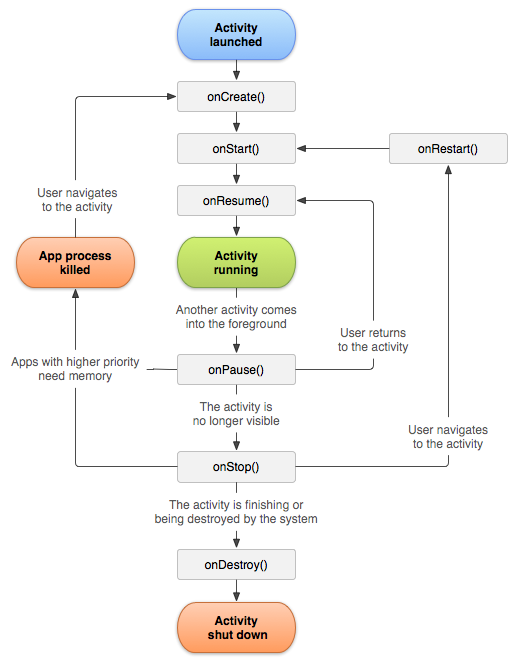
예를들어 앱을 실행 중인데 전화가 오는 상황이면 기존 실행 하던 앱은 OnPause()를 실행하게 되고 다시 되돌 아왔을때
OnResum을 실행시켜 원래 사용하던 앱이 동작하도록 한다. 이때 onPause()가 됐으나 사운드벨이 계속 울리고 있으면
안되는 상황이므로 onResume()에서 리소스를 초기화 하고, onPause()에서 리소스를 해제해줘야 한다.
onResume()과 onPause()의 상관관계에 대해 잘 기억해두자,
최종 정리
package com.example.aop_part2_chaptor06

import android.media.SoundPool
import androidx.appcompat.app.AppCompatActivity
import android.os.Bundle
import android.os.CountDownTimer
import android.widget.SeekBar
import android.widget.TextView


class MainActivity : AppCompatActivity() {

    private val remainSecondsTextView: TextView by lazy { // 남은 초를 확인하는 TextView !
        findViewById<TextView>(R.id.remainSecondsTextView)
    }

    private val remainMinutesTextView: TextView by lazy { // 남은 분을 확인하는 TextView
        findViewById<TextView>(R.id.remainMinutesTextView)
    }

    private val soundPool = SoundPool.Builder().build() // 벨소리 바로 빌드 하는 형식으로 가져올 수 있다.
    // 경로는 res -> raw 에 넣어준다.
    // 생명주기 : onCreate() onStart() onResume() activity onPause() onStop() onDestory()

    private var currentCountDownTimer: CountDownTimer? = null // Timer 설정을 위한 변수

    // 1. CountDownTimer를 상속받는 객체 생성
//    public TimerRest(long millisInFuture, long countDownInterval)
//    - millisInFuture : 타이머를 수행할 시간( 1/1000초 기준 )
//    - countDownInterval : 타이머를 수행할 간격(  1/1000초 기준 )
//    public void onTick(long millisUntilFinished)
//    - 수행 간격마다 호출되는 함수
//    - millisUntilFinished : 남은 시간( 1/1000초 단위로 표기 )
//    public void onFinish()
//    - millisInFuture 시간까지 모두 종료시 호출되는 함수


    // 사운드 값을 넣어 주기 위해서는 Int형 아이디 값을 넣어줘야함
    private var tickingSoundId: Int? = null // 항상 울리는 벨 틱톡틱톡~~
    private var bellsoundId: Int? = null // 0초 됐을 때 울리는 벨

    private val seekBar: SeekBar by lazy {
        findViewById<SeekBar>(R.id.seekBar)
    }

    override fun onCreate(savedInstanceState: Bundle?) {
        super.onCreate(savedInstanceState)
        setContentView(R.layout.activity_main)

        bindView()
        initSound()
    }

    override fun onResume() { // display 화면을 나갔을때 소리 멈춤,
        super.onResume()
        soundPool.autoResume() // 재생 중인 모든 사운드를 다시 재생한다.
    }

    // 예를들어 앱을 실행 중인데 전화가 오는 상황이면 기존 실행 하던 앱은 OnPause()를 실행하게 되고 다시 되돌 아왔을때
    // OnResum을 실행시켜 원래 사용하던 앱이 동작하도록 한다. 이때 onPause()가 됐으나 사운드벨이 계속 울리고 있으면
    // 안되는 상황이므로  onResume()에서 리소스를 초기화 하고, onPause()에서 리소스를 해제해줘야 한다.
    // onResume()과 onPause()의 상관관계에 대해 잘 기억해두자,

    override fun onPause() {
        super.onPause()
        soundPool.autoPause() // 활성화된 sound 모두 종료
    }

    override fun onDestroy() {
        super.onDestroy()
        soundPool.release() // 메모리 최적화, 사운드 풀 반환한다.
    }


//    시크바 이벤트 리스너를 활용하면, 사용자가 시크바에서 선택한 값을 알 수 있습니다.
//    (1) onProgressChanged: 시크바를 조작하고 있는 중에 발생
//    (2) onStartTrackingTouch: 시크바를 처음 터치했을 때 발생
//    (3) onStopTrackingTouch: 시크바 터치가 끝났을 때 발생
    private fun bindView() { // object를 통해 view에 바로 접근가능 !
        seekBar.setOnSeekBarChangeListener(
            object : SeekBar.OnSeekBarChangeListener {
                override fun onProgressChanged(seekBar: SeekBar?, progress: Int, fromUser: Boolean) {
                    if (fromUser) {
                        updateRemainingTime(progress * 60 * 1000L)
                    }
                }

                override fun onStartTrackingTouch(seekBar: SeekBar?) {
                    stopCountDown()
                }

                override fun onStopTrackingTouch(seekBar: SeekBar?) {
                    seekBar ?: return

                    if(seekBar.progress == 0){
                        stopCountDown()
                    }else {
                        startCountDown()
                    }
                }

            }
        )
    }

    private fun stopCountDown(){
        currentCountDownTimer?.cancel()
        currentCountDownTimer = null
        soundPool.autoPause()
    }
    private fun startCountDown(){
        currentCountDownTimer = createCountDownTimer(seekBar.progress * 60 * 1000L)
        currentCountDownTimer?.start()

        tickingSoundId?.let { soundId ->
            soundPool.play(soundId, 1F, 1F, 0, -1, 1F)
        } // 1F 정상적으로 한다~!
        // null이 아닐때만 let을 호출해서 Soundid에 넣어줌
    }

    private fun initSound() {
        tickingSoundId = soundPool.load(this, R.raw.timer_ticking, 1)
        bellsoundId = soundPool.load(this, R.raw.timer_bell, 1)
    }

    private fun createCountDownTimer(initialMillis: Long) =
        object : CountDownTimer(initialMillis, 1000L) {
            override fun onTick(p0: Long) {
                updateRemainingTime(p0)
                updateSickBar(p0)
            }

            override fun onFinish() {
                completeCountDown()
            }
        }

    private fun completeCountDown() {
        updateRemainingTime(0)
        updateSickBar(0)

        soundPool.autoPause()
        bellsoundId?.let { soundId ->
            soundPool.play(soundId, 1F, 1F, 0, 0, 1F)
        }
    }

    private fun updateRemainingTime(remaindMillis: Long) {
        val remainSeconds = remaindMillis / 1000

        remainMinutesTextView.text = "%02d'".format(remainSeconds / 60) // "%02D'" 는 예를들어 56분이면 56' << 이렇게 표현됨,
        remainSecondsTextView.text = "%02d".format(remainSeconds % 60)
    }

    private fun updateSickBar(remaindMillis: Long) {
        seekBar.progress = (remaindMillis / 1000 / 60).toInt()
    }
}'안드로이드 > 앱개발(Android)' 카테고리의 다른 글
| (코틀린 kotlin) 웹뷰 앱 (0) | 2022.01.25 |
|---|---|
| (코틀린 kotlin) 녹음기 앱 (0) | 2022.01.24 |
| (코틀린 kotlin) 전자액자 앱 (0) | 2022.01.21 |
| (코틀린 kotlin) 계산기 앱 (0) | 2022.01.21 |
| (코틀린 kotlin) 비밀 다이어리 앱 (0) | 2022.01.17 |